Musical Pinball
Welcome to the Musical Pinball world. This game lets players craft melodies through physics and creativity. In this interactive
world, you can place various shaped objects, each representing a unique musical note. Customize each object's timbre,
pitch, and note duration to create your desired sound palette. Strategically position and angle these objects to control
the speed and angle of collisions with falling balls. Every impact generates a distinct sound, allowing you to compose a
harmonious symphony through a series of well-orchestrated collisions. The game challenges your creativity and musical
sense, as you arrange these interactive elements to form a complete, cohesive musical piece. Whether you're a music
enthusiast or a casual gamer, this experience offers a unique blend of art, physics, and music, providing an immersive
journey into auditory creativity.
1. User Interface Elements
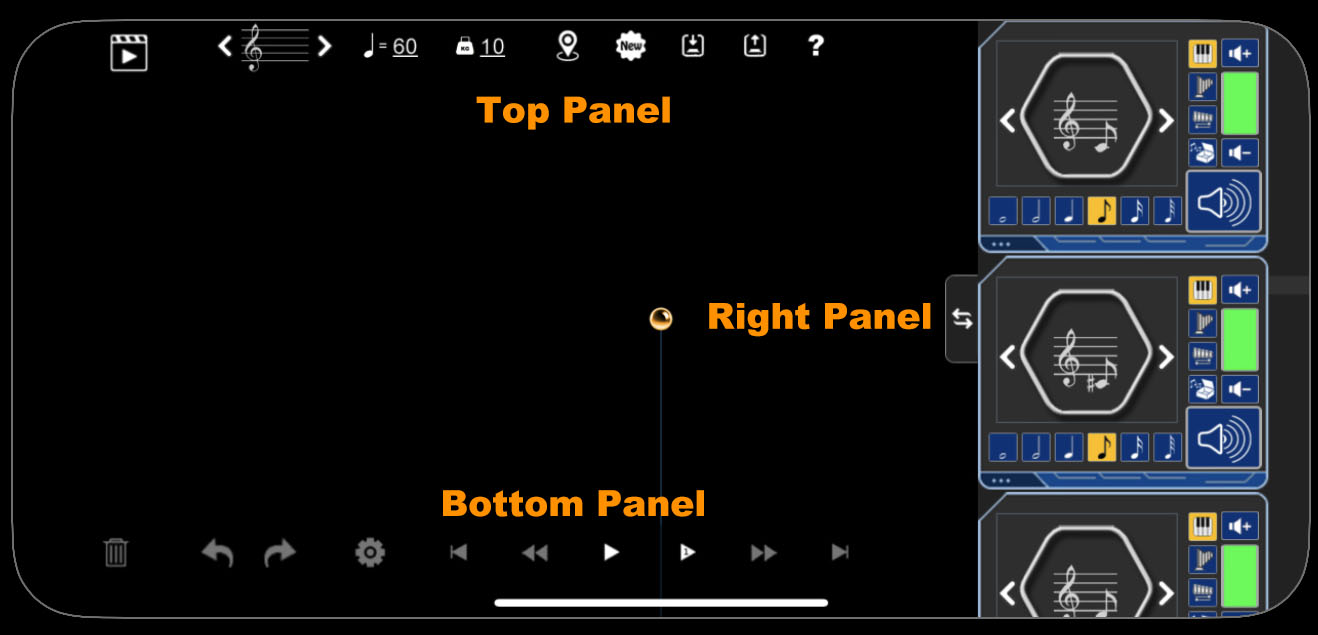
1.1 Top panel

|
Swith between "Play" mode and "Edit" mode.
|
|
Key signature. You can change it by click the left and right arrow button.
|

|
Beats per minute. You can change it by click the number.
|

|
Gravity factor of game world. You can change it by click the number.
|

|
Show the map.
|

|
Create a new song.
|

|
Save the song to file.
|

|
Load song from file.
|
1.2 Bottom panel

|
Delete the selected object.
|

|
Undo.
|

|
Redo.
|

|
Change the settings of selected object.
|

|
Go to the history beginning.
|

|
Go back to the previous history point.
|

|
Play/Pause the song.
|

|
Run single step. This will be useful when you do the notes alignment checking.
|

|
Go forward to the next history point.
|

|
Go to the last history point.
|
1.3 Right panel
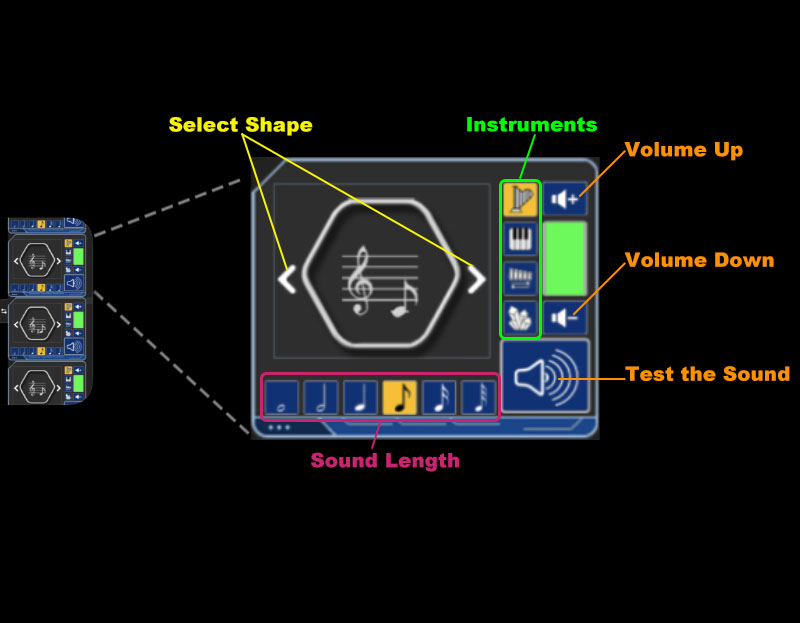
On the right side of the screen is a list of musical notes. You can scroll through the list by sliding your finger.

The items in the list are musical notes. And you can change the settings of the musical note by click the buttons
on it.
|
|
There are several settings for each musical note:
|
|
- Sound length
|
|
- Instruments, like Harp or Piano (*the instrument Celesta and MusicBox are invalid in the lite version)
|
|
- Volume
|
|
- Shape for the musical note: rectangle or hexagon。
|
|

|
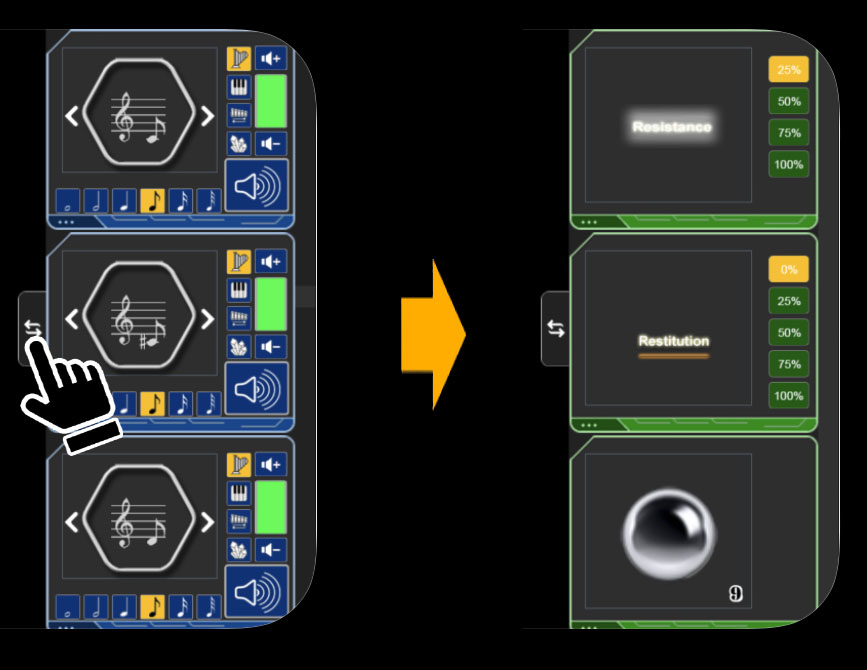
Click the "switch" button to switch between musical note list and utilities list.
|
2. How to Play
2.1 "Edit" mode and "Play" mode
There are 2 modes in Musical Pinball: "Edit" mode and "Play" mode. You can swith the modes by click the button at the top left of screen.
Edit Mode:
- You can create, move or delete the sound elements in the game world.
- The auxiliary lines will be shown.
- When the song starts playing, the game engine will record the status of balls every second as history points. You can use the bottom panel to go to any of these history points.
- The camera will not move automatically.
PLay Mode:
- You cannot modify the game world
- The auxiliary lines will not be shown.
- The camera will follow the pinball automatically.
2.2 Edit the song
2.2.1 Create a new sound element
1. Scroll the musical note list to let the target note shown in the list view.
2. Press on the shape area of the musical note list. Hold it until it highlighted.
3. Drag the shape out and drop it into the blank area of game world.

2.2.2 Rotate a sound element
You can use 2 fingers gestures to rotate object.

2.2.3 Select and move object
You can select the object by click it or long press on it. When the object is selected, it will be highlighted. You can drag and move it in the game world.
Note: the primary ball (golden ball) cannot be selected or moved.

2.2.4 Delete an object
- Select a object in the game world
- Click the "Delete" button on the bottom panel
2.2.5 Create an utility object
There are 4 utilities: Glue Board, the Bounce Board, Sound Bundle and the Extra Balls. You can drag them out from the utilities list and drop them into the game world.
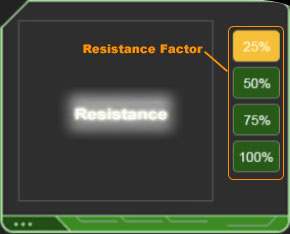
- The ball will be decelerated when it passes through the Glue Board.
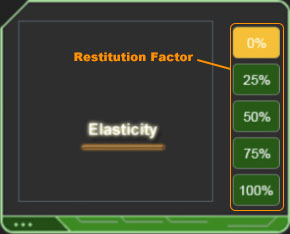
- The Bounce Board will bounce the ball without play a sound. You can set the restitution factor of it.
- The sound bundle will play all the sounds in it.
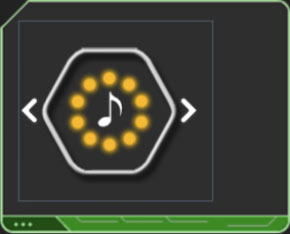
After created a sound bundle object, you can click the button to edit the sound bundle.
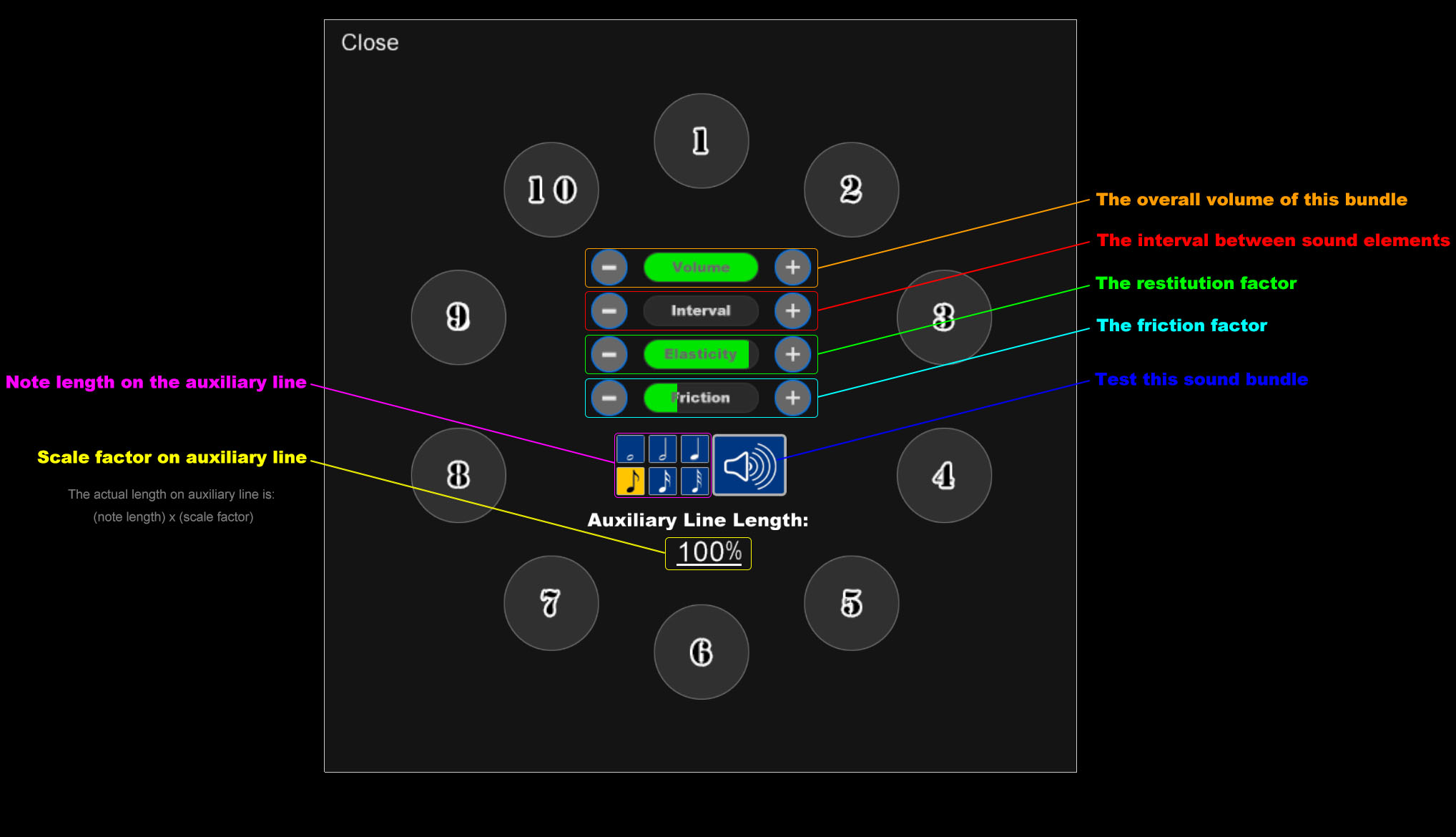
- The "Volume" bar is used to change the overall volume of this sound bundle.
- The "Interval" bar is used to change the play time interval between sounds. The sounds will be played in numerical order.
- The "Elasticity" bar is used to change the restitution factor of the sound bundle object.
- The "Friction" bar is used to change the friction factor of the sound bundle object.
Drag the note from musical note list and drop it into the sound bundle.

You can click the 'x' button at the top-right of the musical note to delete it from sound bundle.

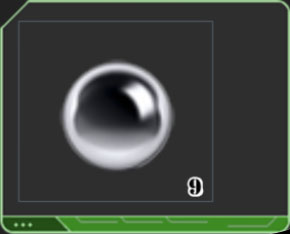
There are 9 extra balls (silver balls). The extra balls will be stay in inactive state until the primary ball (golden ball) passes by (the altitude of the primary ball is lower than this extra ball). Not like the primary ball, the extra ball can be selected, moved or deleted when it in inactive state.
2.2.6 Map
Click the on the top panel to show the map. The map will show the whole game world.
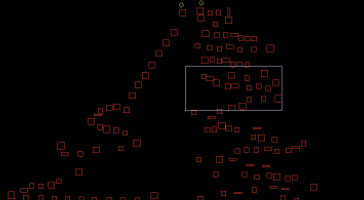
The white rectangle on the map is the range of you screen. Click on the map, the screen will move to the target position.
2.2.6 Save the Song to file
Click the on the top panel to save the song to file. You need to input a file name for the song.
2.2.7 Load song from file
Click the on the top panel to show the song list dialog like:
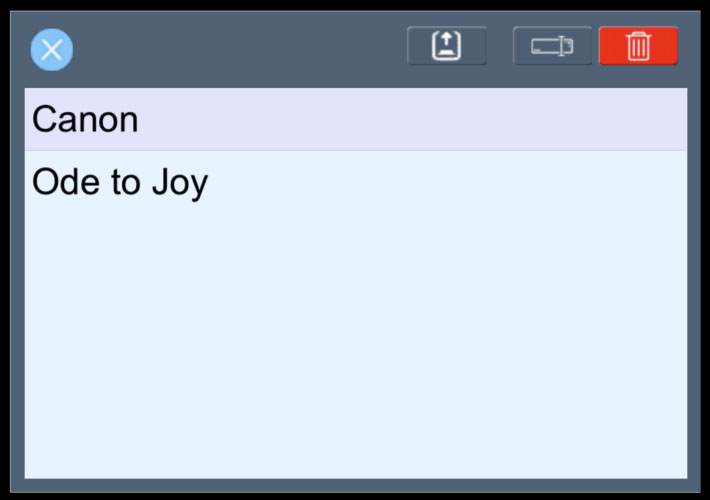
 Load the selected song.
 Rename the selected song.
 Delete the selected song.
2.2.8 Auxiliary lines
The system will calculate the position of the ball in the next 10 seconds. And also system will record the trajectory of the balls for last 10 seconds when they are moving.
When the ball contacts with a sound element, system will calculate where should be the best place for next contact.

System will draw a green spot on the auxiliary line for the best position of next contact, and will draw a yellow spot for the actual contact position.
You can move the object to overlap these 2 spots. But since the balls can only move between frames, it may not able to contact the sound element at the "best contact position".
System will draw a green line segment on auxiliary line. The beginning and end of this line segment represent the two frames before and after the contact occurs.
You need to decide where the contact will occur.
* It is strongly recommended to do a check every bar to ensure the notes of different balls are aligned correctly. If you only discover a lack of alignment between multiple parts at the end, and this lack of
alignment is caused by errors that occurred earlier, then adjusting it will be a difficult task.
2.2.9 Left panel in play mode

|
In the play mode, the left panel is a list of balls. The camera will follow the ball which you selected on this list.
|
3. Data Import/Export
You can export your songs as backup.
* Please note that it is not recommended to use the exported songs on other devices. It's because we use floating-point numbers for
calculations of collision, rebound, rotation, resistance, and gravity. Different CPUs may have slight differences in
performing floating-point calculations, resulting in tiny variations in the calculation results. During each
collision, these tiny computational differences accumulate and eventually form significant differences. So, songs that
work properly on your device may encounter issues on other devices, especially on the systems with different CPU
architectures.
3.1 Windows
- Open iTunes
- Connect your device to the computer
- Open the "File Sharing" of your device on iTunes
- Select "MusicalPinball" in the app list, the .mpb files in the file list are your songs.
3.2 MacOS
- Open Finder
- Connect your device to the computer
- Select your device on Finder and click the "File" tab.
- The .mpb files under "MusicalPinball" are your songs.